Five minutes inside Kwilo.

The screens you use to keep the day moving: Customers, Jobs, Quotes, Invoices, records and review work in context.

Kwilo Jobs workspace showing nine Jobs with Customers, dates, stages and next actions
Start with the workEvery live job, visible in context.

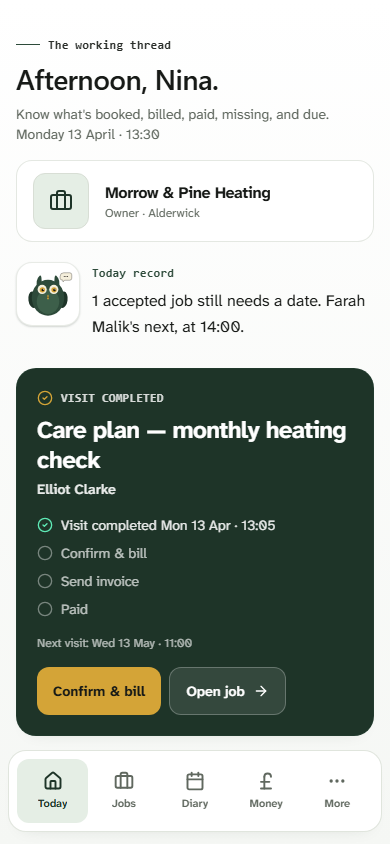
Kwilo Today showing a completed care-plan Visit, the next billing step and Farah Malik next at 14:00

After the visit

Finish the visit. See what is next.

The completed visit, the next billing step and the next booked Job stay together. You can move the work on without rebuilding the story from notes and messages.

  • Completed Visits keep their Customer and Job context
  • Confirm the work and billing before sending an Invoice
  • See the next booked Visit without leaving Today
Kwilo Magic Quote entry for Ava Bell's Boiler pressure check Job, with voice and typed-note choices
Speak or type the work from inside the Job.
Kwilo Magic Quote showing suggested lines ready to review for a boiler pressure Job
Review the suggested lines before adding them to the Quote.

Start from the Job

Speak or type. Review before you add.

Start Magic Quote from the Job, describe the work in your own words, then check the suggested lines. Nothing joins the Quote until you choose to add it.

  • Start with the Customer and work already saved on the Job
  • Speak or type the detail you want turned into Quote lines
  • Review every suggested line before adding it to the Quote
Kwilo Jobs list showing nine Jobs with Customers, dates, stages and next actions

Keep the week moving

Every Job. One next action.

One list shows nine Jobs from new enquiry and Quote approval through scheduled work and invoicing. Each row keeps the Customer, stage and next action together.

  • Search by Job or Customer and filter the working list
  • See scheduled dates, stages and next actions together
  • Spot work ready to invoice and Jobs still waiting for dates
Kwilo Expenses showing five sorted business costs on desktop

Review receipts and business costs

Review receipts. Keep costs sorted.

Check receipt details, see sorted business costs and keep each cost connected to the right Job or overhead. The record builds from everyday work instead of a later paperwork hunt.

  • Review receipts that still need a detail checking
  • See sorted costs with their category and receipt evidence
  • Connect Job costs to the work and keep overheads clear

A few more screens from inside.

The bits you'll use once you are set up — your Jobs, Diary and Expenses.

Kwilo Jobs mobile list showing heating-service work at different stages

Jobs · mobile

Keep the next step for every Job clear away from the desk.

Kwilo Expenses Inbox showing three receipts ready for review on mobile

Expenses · mobile

Hand over receipts on mobile and step in where a detail needs checking.

Kwilo Diary showing a completed care-plan Visit and four upcoming heating Jobs across three days

Diary · desktop

See completed and upcoming Visits by day, with the Customer, time and Job kept together.

The phone views help when you are moving between Customers. Desktop is there when you want more room to review work, money and records.

Join the rollout before the next busy week.

The button opens the app sign-in page. That is where early access is requested while rollout is limited.